

420 Million People Use Copilot. Almost None Use It Right.
The research, notebook, and presentation pipeline that takes Copilot from mediocre chatbot to a real workflow.


🧠 TLDR: Most Copilot users treat it like a smarter search bar. This workflow treats it like a pipeline — an RFP lands, Copilot researches and cross-references it against your company's files (pulled directly from SharePoint, OneDrive, or even Google Drive), Pages structures the analysis into a persistent workspace with Excel export, and the presentation generator builds a board-ready deck from that structure. Built for teams that can't touch Claude, ChatGPT, or anything outside the Microsoft compliance boundary.
Copilot has a reputation problem and most of it is deserved.
Microsoft’s own CEO reportedly described some of Copilot’s integrations as things that “don’t really work.” In paid AI subscriber market share, Copilot contracted roughly 39% between mid-2025 and early 2026. The standalone chat experience — the part most people interact with — is genuinely mediocre compared to Claude or ChatGPT on the same tasks.
And yet, 420 million people use it every month. Not because it’s better. Because it’s there.
If your organization runs Microsoft 365, Copilot operates inside your compliance boundary — processing data in your tenant’s region, not training on your files. For regulated industries, that’s not a feature. It’s the reason it wins the procurement decision over tools that are objectively more capable.
👋 Hi, I’m Raghav
Along with Ashwin, I write on Cash & Cache for people building with AI: workflows, agents, skills, and the strategy behind them.
Browse the Library → Cash & Cache Library
Not sure where to start? Take the quiz
*****************
Most Copilot users never get past the chat bar. They type a question, get a mediocre answer, and conclude the tool is useless. What they miss are three capabilities that work meaningfully better than the chat.
I’ll show all three by evaluating an RFP — but the RFP is just the vehicle. The pipeline works on any dense document that needs to become a deliverable.
What we’ll cover today…
The Copilot reputation problem — why most users give up too early
Where the three capabilities live — Pages, connectors, Frontier agents, and the version differences that decide what you can use
How Copilot connects to your files — SharePoint, OneDrive, and the Google Drive connector that most people don’t know exists
Phase 1: Research — three prompts that turn a 40-page RFP into a structured assessment
Phase 2: Pages/Notebooks — the persistent workspace that bridges research and presentation, plus Excel/CSV export
Phase 3: Presentation — generating a 70%-complete board deck, with a side-by-side comparison of Office Agent vs Claude
The full prompt library — 10 prompts with bracketed placeholders, ready to copy and run on your own deals

Where to find these features in Copilot
Before we run the workflow, here’s where the three capabilities live — because Microsoft hasn’t made this obvious.
Copilot versions — what you need
Copilot Chat (free with M365) gives you web-grounded chat. No Office app integration. The workflow below won’t run on this tier.
Copilot Pro / M365 Premium (~$20/month personal) adds Copilot inside Word, Excel, PowerPoint, and Outlook, plus Pages. This is the minimum tier for this workflow.
M365 Copilot ($30/user/month enterprise add-on) adds organizational data integration via Microsoft Graph — Copilot pulls from SharePoint, Outlook, and Teams without manual uploads. This is where the connector ecosystem opens up.
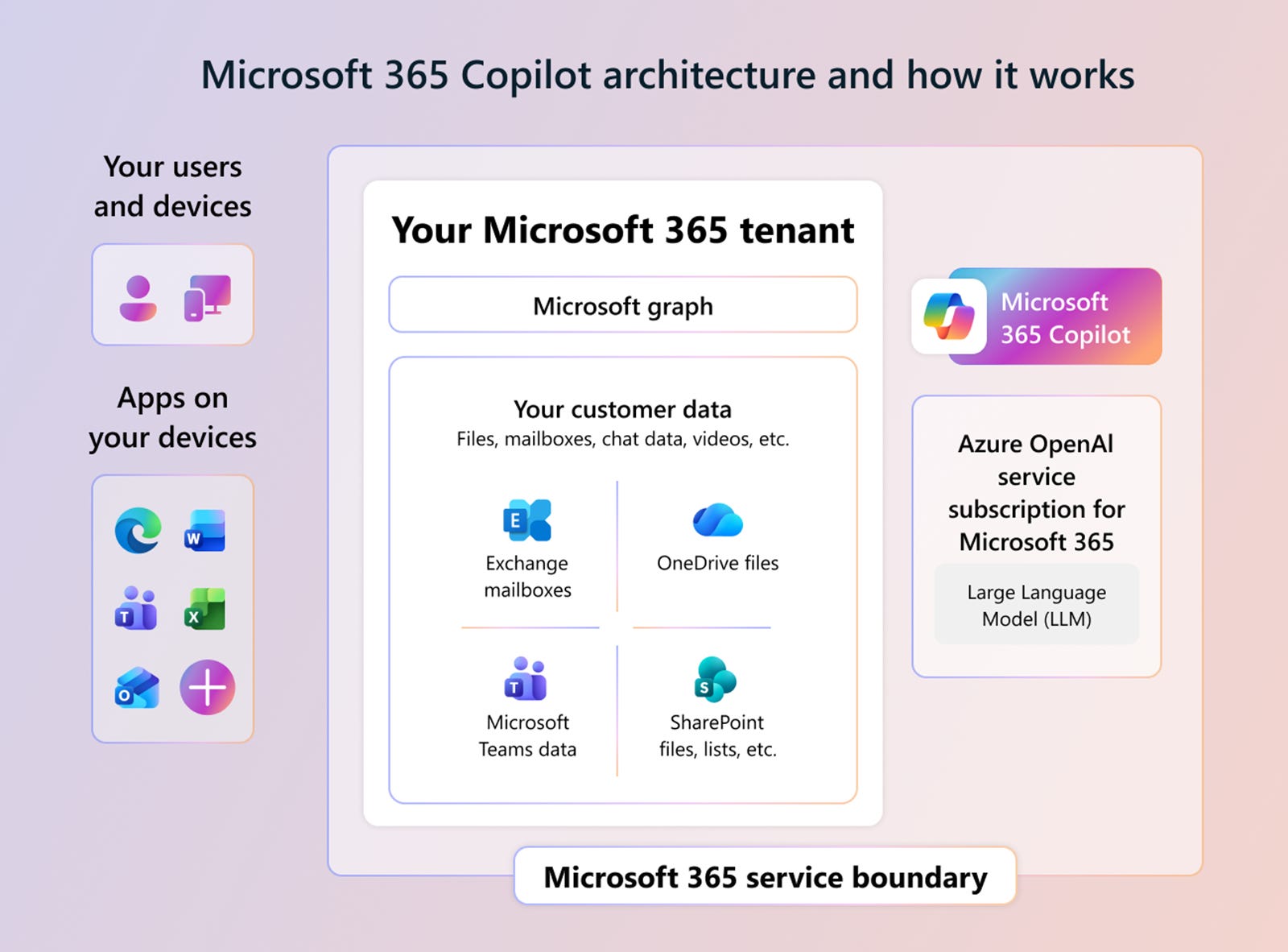
How Copilot connects to your files
This is one of Copilot’s genuine advantages over standalone AI tools, and most people never use it.
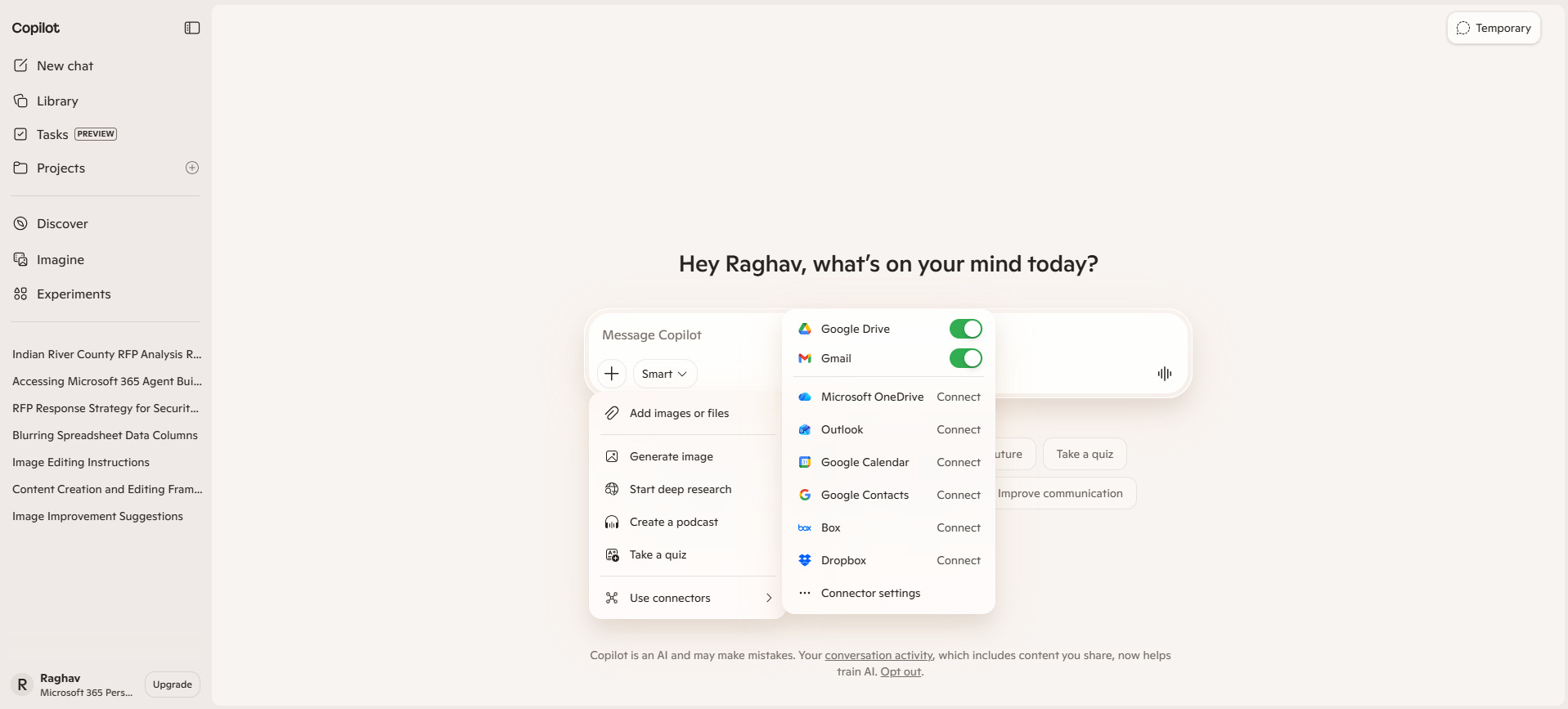
In the Copilot Chat compose box, select “Add content.” From there you can reference files three ways:
Local uploads — drag in files from your machine. A copy is saved to OneDrive automatically.
Cloud files — browse and attach directly from OneDrive or SharePoint. No downloading, no re-uploading. Your company’s RFPs, strategic documents, past proposals — if they’re in SharePoint, Copilot can read them in place.
Connectors (enterprise) — if your admin has deployed connectors, Copilot can pull from over 100 external sources including Google Drive, Confluence, Box, and Salesforce. If your organization runs a hybrid Google-Microsoft stack, the Google Drive connector indexes your Drive files and makes them available inside Copilot while respecting your existing access controls. You reference Google Drive content the same way you’d reference a SharePoint file.
This means the research phase of this workflow doesn’t require you to gather documents manually. Point Copilot at the SharePoint folder where your company keeps strategic priorities, past engagement summaries, and capability documents. It reads them in place.
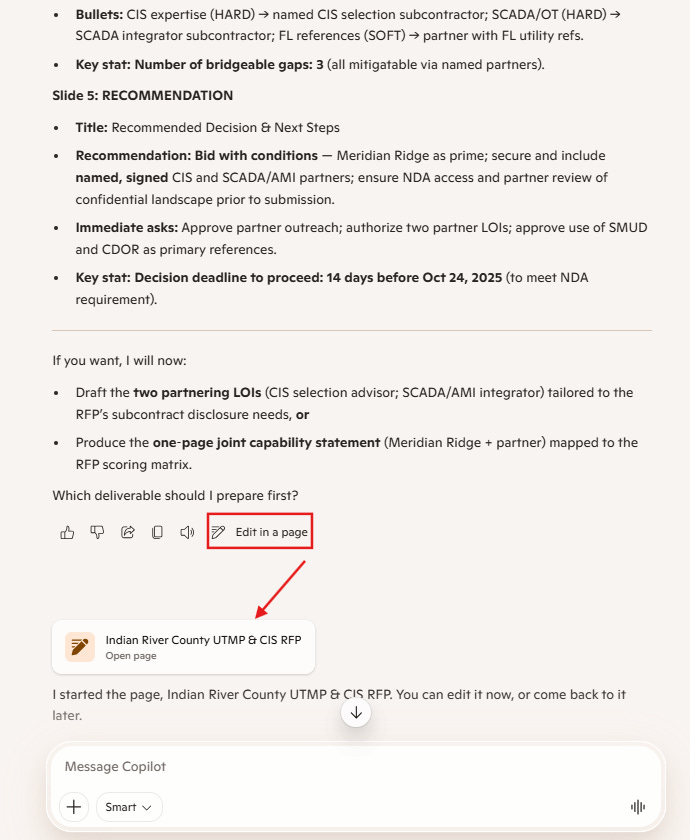
Where to find Pages
Start a chat, ask Copilot to generate structured content, and look for the “Save to Page” or “Add to Page” option. Pages persist between sessions — unlike chat, which vanishes when you close the window.
Pages act as a conduit for transforming your researched output into C-suite level presentations or visually representing datapoints in Excel for future use.
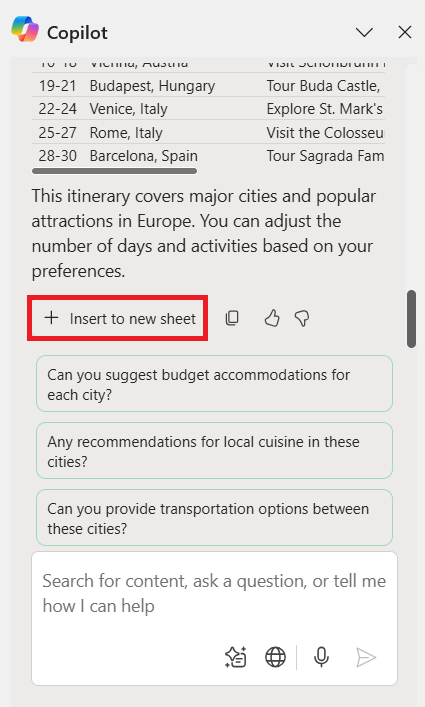
Where to find the Excel/CSV export
Once you have a table in a Page, right-click it. You’ll see the option to export to Excel, Insert to new sheet or download as CSV. Often, Copilot users never see this menu.
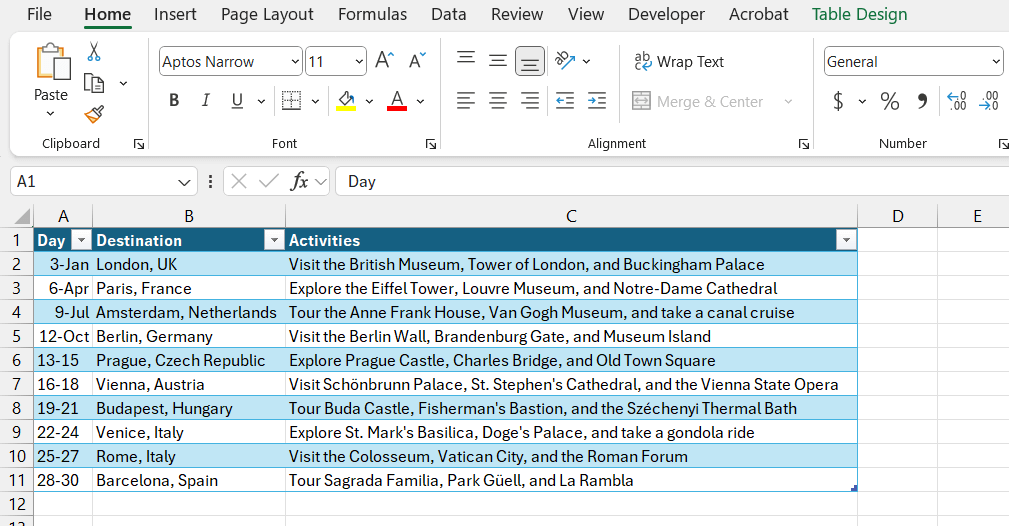
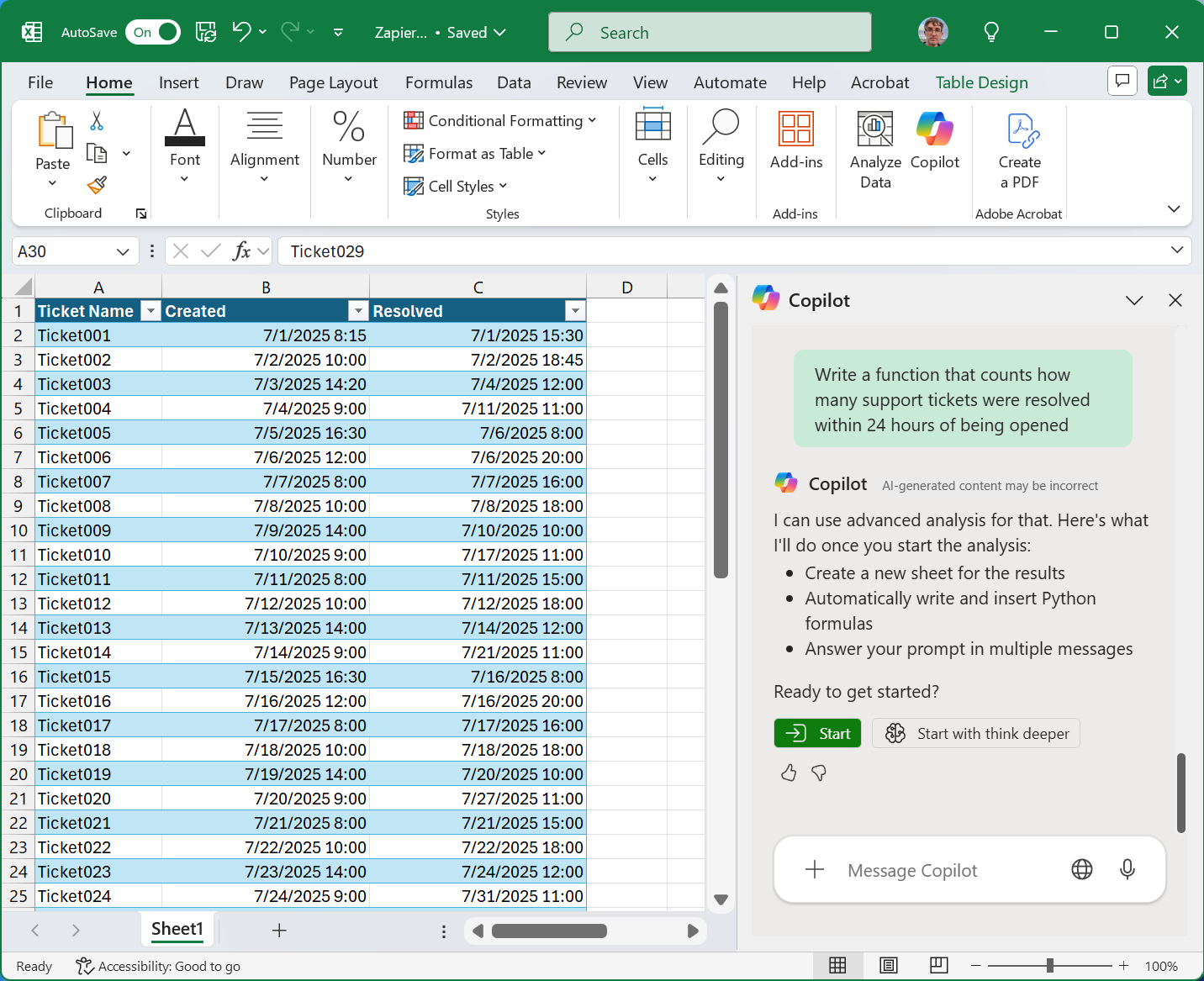
You can even edit the data in your Excel file directly by prompting in a Copilot chat, after clicking on the Copilot icon on top right of the Excel. For this, you need a valid Copilot license and its configuration to your Microsoft Office account.
Enterprise extras and Frontier agents
Agent Builder (enterprise tier) lets you create a custom research agent connected to specific SharePoint or OneDrive folders. Build it once, reuse it on every incoming RFP.
Frontier agents are available through Microsoft’s early access program. The one that matters for this workflow is Office Agent — powered by Anthropic’s models, it creates PowerPoint and Word documents in a chat-first format: you describe what you need, it asks clarifying questions, then generates the document. I used Office Agent for the presentation phase of this workflow because standard Copilot PowerPoint generation wasn’t available on my personal M365 Premium subscription. It worked well — and on the enterprise tier, it’s an even stronger option because it can pull context from your organizational data.
Office Agent access depends on your subscription and region. On personal subscriptions, it may appear under the Frontier tag with a limited number of daily uses. On enterprise, your admin needs to opt into the Frontier program and enable the Anthropic model toggle in the M365 admin center. As of mid-2026, availability varies by region — some features are US-only.
There’s also Agent Mode in Word and Excel — powered by OpenAI’s reasoning models, executing multi-step tasks inside documents. Separate from Office Agent, different model, different purpose.
Phase 1: Research — give Copilot context before you ask it anything
Most people type a question into Copilot cold. That’s the weakest way to use it.
The workflow starts by loading the source documents into the chat. The RFP or proposal you’re evaluating, plus your company’s internal documents — strategic priorities, capability matrix, past engagements. On the personal tier, you upload manually. On the enterprise tier, you reference them directly from SharePoint or through a connector, without downloading anything.
I ran three prompts in sequence. The first broke down what the RFP is actually asking for — deliverables, deadlines, evaluation criteria, and anything non-standard. The second cross-referenced my company’s capabilities against every requirement, identifying where we align, where the gaps are, and ranking past engagements by relevance. The third dug into each gap: is it bridgeable through a teaming partner or hire, or is it a fundamental mismatch?
What came back was useful. Copilot correctly identified the dual-purpose nature of the engagement, flagged our strongest reference, pegged our fit at roughly 75%, and identified three gaps — all bridgeable. Recommendation: bid with conditions.
The honest limitation: the analysis is only as good as the documents you feed it. If your company’s strategic priorities and past engagements are scattered across email threads and personal drives, Copilot can’t cross-reference what it can’t see. If you’re on the enterprise tier, make sure your three most relevant company documents are in an accessible SharePoint folder. If you’re on the personal tier, upload them manually. That one-time setup pays for itself on every future evaluation.
Everything we build lives in the Cash & Cache Library.
Skill files, AI workflow templates, prompt packs, and implementation guides — all downloadable, all built from how we actually work. Premium subscribers get full access.
Unlock the Library → Cash & Cache Library
The section above shows you where Copilot’s capabilities live and proves the research pipeline works.
Our Premium Subscribers get access to the full resource stack that makes Copilot an efficient engine for C-suite workflows:
💎 The complete prompt library — all 10 prompts across three phases (research, Pages, presentation), written with bracketed placeholders so you copy them, fill in your details, and run them on your own deals.
💎The Pages structure template — the exact 6-section format that turns a mediocre presentation into a 70% complete deck on first pass, plus the prompt that generates an exportable capability-vs-requirements table you can send to Excel with two clicks.
💎The presentation and infographic prompts — including design direction, colour specification, and the workaround for generating supporting infographics in a separate chat.
💎The executive summary email prompt — the 5-bullet format for sending a pursuit recommendation to leadership.
