

Claude Code Isn't Just for Developers: 5 Workflows That Will Save You Hours This Week
How to use Claude Code to manipulate files, automate research, and organize your life without writing a single line of code.


It’s no longer news that Claude Code is an industry-leading coding agent; developers, founders, and AI enthusiasts have all sung its praises. Since I started using Claude, I was initially a bit skeptical about using Claude Code as the solution would live in your terminal and for a non-technical product manager this would be a bit intimidating. I associated the terminal with something that required deep technical expertise.
When Anthropic released Claude Code v2.0, most people ignored it, thinking it was just for developers. This update wasn’t about code, it was about access. With it came one of the reasons that actually motivated me to install Claude Code — the VS Code extension. This extension now includes a familiar chat window as a left panel, allowing you to interact with Claude Code in a much less intimidating way.
I have been using VS Code for a while now, mainly to learn Python programming, and thought I might as well try out Claude Code and see what the hype is all about.
Initially, I began by using it for its primary use case: coding. It was a relief, to be actually be able to build applications without external dependency. I wasn’t planning to push any apps to production, but it changed the way that I work. I can now build and build a draft solution prototype before engaging the wider team with it.
After a few weeks I found myself using Claude not just for vibecoding but also for working on non-technical workflows like content creation, editing, market research, etc.
While most assume that Claude Code is exclusively for developers, its ability to work with files, execute multi-step workflows, and maintain persistent context unlocks powerful applications.
💻 What Makes Claude Code Different?
Before Claude Code, I preferred visually engaging interfaces for vibe coding like Lovable and V0. These platforms let you describe what you want and watch applications come to life through drag-and-drop interfaces and visual builders. They’re intuitive, immediate, and perfect for prototyping web apps.
But they have limits: they’re confined to specific use cases (mostly web development) and operate within their own closed environments. You can’t ask Lovable to analyze these 50 PDFs and create a comparison spreadsheet or tell V0 to organize project files and generate status reports.
And that’s where Claude Code sets itself apart: it not only lives in your computer terminal but adds immense value to its operations.
The terminal, also called the command line interface (CLI), is simply a text-based way to talk to your computer. Instead of clicking icons and menus, you type commands as text.
Why does it exist? Because for certain tasks, especially file manipulation, automation, and working with multiple programs at once, typing commands is actually faster and more powerful than clicking through graphical interfaces. That’s why developers and power users rely on it.
But there is a problem, terminal commands look terrifying:
for file in *.pdf; do python analyze.py “$file” >> results.txt; doneBut Claude has you covered. You don’t need to learn terminal commands. You just describe what you want in plain English, and get it translated into the proper commands and executes them.
Unlike the web/desktop interface web chat interface, Claude Code operates as a command-line tool that can:
Access and modify files on your local system (not just view or generate content)
Execute multi-step autonomous workflows without constant supervision
Work across multiple file formats simultaneously (Excel, Word, PowerPoint, Markdown, images)
Maintain persistent context across extended sessions
Integrate with your actual computer environment (your folders, your files, your tools)
Think of it as moving from asking questions to having Claude actually do the work on your computer. The terminal gives Claude hands to manipulate your files. Natural language gives you the ability to direct those hands without learning a new language.
You get the power of the terminal combined with the simplicity of conversation.
⚙️ Getting Setup
Two of the easiest ways to use Claude Code are either directly in a terminal window or through an IDE (like VS Code or Cursor). I prefer to use VS Code as you are also able to view files in the same application and view the edits made by Claude Code in the file directory.
👇 See it in action (2 min setup): Check out this video below to see how you can setup Claude Code today and learn the must know features.
⭐ Non-Technical Workflows
There is much more to Claude Code than meets the eye— since it directly lives on your computer, you can use it to actually execute workflows on your desktop instead of the Q&A format with the desktop Claude application.
Here are 5 use cases that utilize the full power of Claude Code to give you better results than using the Claude desktop application.
1. Create a Document Suite With One Command
You can open terminal for individual folders and ask Claude to made edits and work within the confines of that folder. In VS Code you can just open this folder before triggering the terminal. For the pure terminal experience, right click on the folder and open in the terminal.
This use case can transform individual data sources into multiple professional outputs simultaneously in the same command— be it an Excel sheet with formulas, Word summaries, and PowerPoint presentations, etc.
How to test this:
Create a New Folder with the Data Sources: Save a copy of the starting data sources in a new folder and open this folder as a new instance in your terminal or preferred IDE
Run Claude Code: Navigate to the folder and start Claude
Give the command:
👇 Use this prompt to create your document suite
Create three files from sales_data.csv:
1. Excel file with formulas calculating quarterly totals
2. Word document with executive summary of performance
3. PowerPoint with one slide showing growth trends
The above prompt is a generalized prompt that you can use, for better results try adding more context so that you can tailor the output to your expectations. The next step is to review the prepared documentation and provide feedback to Claude to improve.
This full run took me around 10 minutes, and the output documents served as a great starting point. Once you give individual feedback on the enhancements you require for each document, you converge towards your expectations.
This is not a one shot use case, as with any project, you get better results once you refine output based on feedback and reviews.
2. Personal Learning Studio
I’m constantly researching topics for newsletter articles covering AI trends, disruptive startups, productivity tools, etc. I’d often end up with a huge collection of article links and PDFs, after which I’d have to spend hours synthesizing the information and building a clear understanding of latest developments. With the Desktop version, I’d hit upload limits and lose context switching between files.
With Claude Code you can host all your links in one text file and all PDFs in the same master folder. This is your knowledge base, Claude Code now has access to the context it needs to help you in your learning journey.
If you want to start without having the repo of links, just run a perplexity search explaining what you want to learn about and provide [x] resource links to learn more about the topic. Then export this as a Markdown file in the knowledge base master folder.
If you’re like me and you download all digital products that you come across, you can ask Claude Code to review your downloads and import all relevant files to the knowledge base before you start your analysis.
Additionally, make sure you copy paste the Claude Skills folder in this master folder for Claude Code to use when appropriate.
How to test this:
Build the Knowledge Base: Create a master folder. Save all your relevant PDFs there. If you have web links, run a Perplexity search on your topic and export the results as a Markdown file into this folder.
Add Skills (Optional): Copy your “Claude Skills” folder here if you have specific analysis guidelines.
Run Claude Code: Open the terminal in this folder and run the following command:
👇 Use this prompt to start learning
Read all PDFs and markdown files in this folder.
1. Create a research-summary.md that compares findings across sources in a table format.
2. Create a glossary.md defining all technical terms.
3. Identify the 3 most compelling data points for a newsletter article.
Claude Code reads every document at once and cross-references them. Unlike the chat interface, you don’t have to upload files one by one or worry about chat limits. I can return to this folder weeks later, add new sources, and ask the agent to update the summary without context loss.
3. Document Management
Do you have any folders that you don’t have time to categorize? You can use Claude Code to help do the grunt work. For example, I have a folder where I stored stock images and it was messy, hundreds of images that I use for investor decks, background images, marketing, etc.
I wanted to see if Claude Code could help me organize this folder → review the images, create smart categories and assign individual images to a subfolder. Long story short, it worked perfectly.
How to test this:
Pick a Messy Folder: Find a folder filled with unorganized files (images, mixed documents, or downloads).
Start Claude: Open the terminal inside that folder.
Give the command:
👇 Borrow my prompt for your messy folder
Review all files in this folder. Analyze their content/purpose and:
1. Suggest 3-5 logical categories for organizing these files.
2. Create subfolders for each category.
3. Move files into the appropriate subfolders.
4. Create a summary.md file listing what you organized and why.

IMPORTANT: Before moving anything, show me your proposed organization structure and wait for my approval.
Organization is one of the most underrated skills in web development. You can also connect Claude Code with GitHub to tidy up your messy repository! 🧹
For this, I picked an old product of a local housing platform and used Claude Code to organize my files in my GitHub repository.
👇BEFORE:
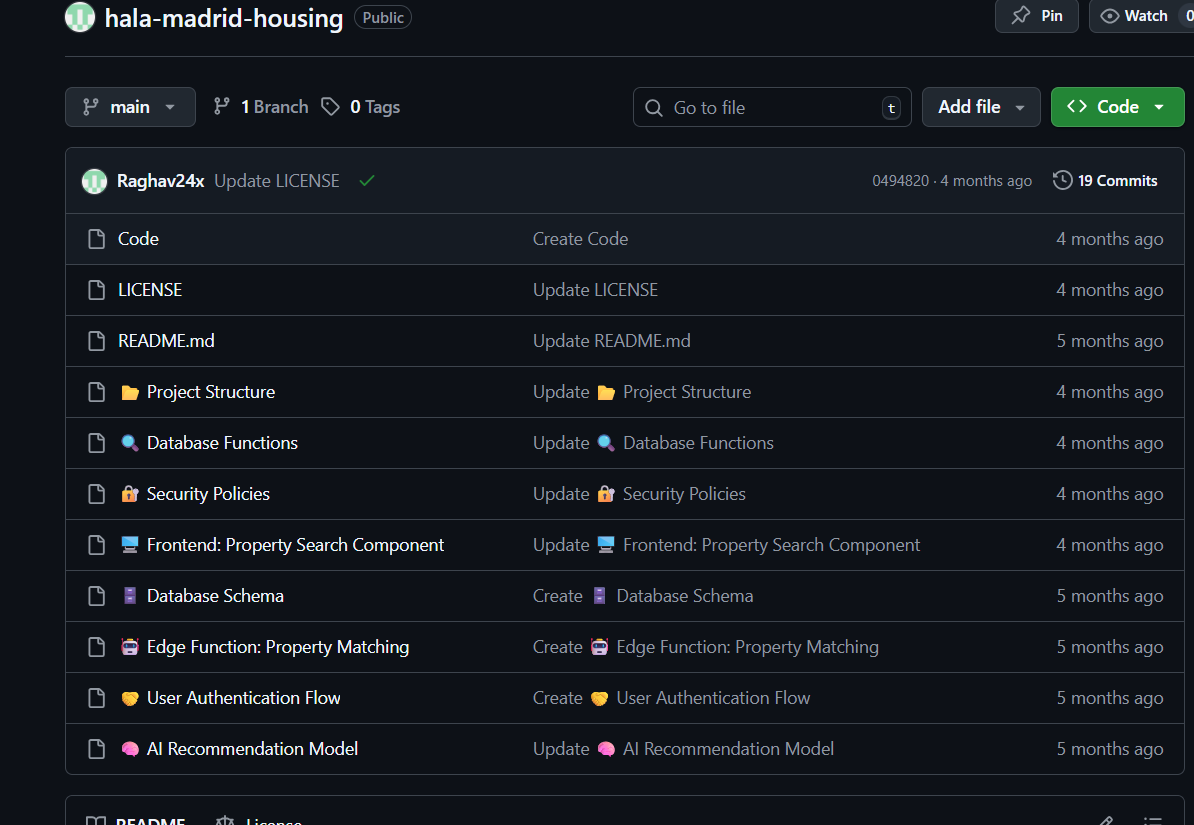
👇AFTER querying Claude Code to organize my files into local categories:
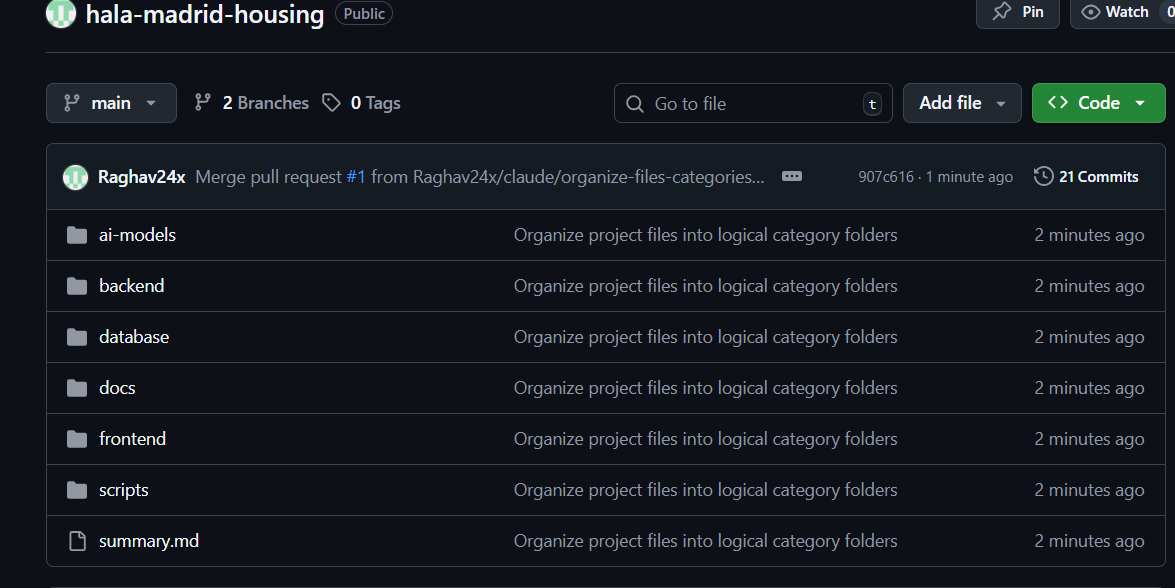
It looks so much more neat and professional. This is just one use case. You can use Claude Code to help you organize your folder across almost any data types.
4.Research 10 Competitors in Minutes
Competitive analysis is critical for strategy, but manually researching 5-10 competitors means hours of opening tabs, copying pricing tables, and organizing notes.
Claude Code automates this by creating organized competitor profiles in consistent formats.
How it works:
Create folder:
/Competitor-Research/Start Claude Code in that folder
Research each competitor:
👇 Competitor research prompt template
Research [COMPETITOR URL].

Create a folder named [Company-Name] and save a single professional Word document named “[Company-Name]_Profile.docx”.

Include these three clear sections in the document:
1. Pricing (All tiers, prices, and what is included)
2. Features (Core capabilities grouped by category)
3. Positioning (Target market and unique value prop)
After all competitors are done:
👇 Competitor research analysis prompt
Read all competitor folders.
Create a professional Excel file named “Competitive_Matrix.xlsx”.

Requirements:
1. Compare pricing and features side-by-side.
2. Make the first row bold and freeze the panes.
3. Auto-fit the column widths so it is easy to read.
When a new competitor launches, add their URL and rerun. Claude updates comparison tables automatically.
The true value lies not in performing this task once, but in the ability to automate its recurrence each quarter by simply typing update competitor analysis and Claude will revisit all those URLs, check for changes, and update the matrix automatically.
Advanced: Parallel Agents
Claude Code can spawn multiple sub-agents to research competitors simultaneously, potentially cutting time from 45 minutes to 10-15 minutes for 8 competitors.
The catch: Parallel agents consume tokens rapidly. You may hit usage limits with 5+ agents running at once, especially on Pro plans.
👇Use the prompt to spawn your agent army
Spawn [NUMBER] sub-agents to research these competitors in parallel: [URLS]
Each agent creates the same folder/file structure as above.
Be cautious with spawning too many agents as this can max out your token limit quick.
5. MCP Multiplier Effect
Everything I’ve shown you so far works with files on your local computer or browser links, documents, folders, research papers. But MCP (Model Context Protocol) integrations takes this to the next level.
MCP gives Claude Code arms and legs beyond your hard drive. It can connect to your productivity tools like Notion, n8n, Figma, Canva, Paypal, monday.com, etc. Once connected, Claude Code doesn’t just read and write files anymore. It manages your actual workflow across all your tools.
Here’s what’s possible and it’s honestly a bit overwhelming (in a good way):
Here’s what’s possible:
Read my Notion page ‘Weekly Goals’ and my ‘Journal’ entries from the last 7 days. Summarize my progress, flag any goals I completely ignored, and generate a prioritized to-do list for today based on what I missed.
Check n8n to see if any of my active workflows have failed in the last 24 hours or Run my n8n workflow named ‘Weekly Sales Report’ right now.
Search Canva for my design file named ‘Q3 Board Deck’ and give me the edit link or Create a new design in Canva using the ‘Instagram Post’ template and title it ‘Vibe Coding- Dec 3rd’.
But before you explore MCP integrations, try the following progression:
✅ Master local workflows (what we covered today)
Build reliable systems for recurring tasks
Then explore MCP once I have working patterns
Start with what works locally. The MCP possibilities will still be there when you’re ready.
👻 The Terminal Isn’t Scary
Claude Code takes all the technicalities out of using the CLI. Now all you need is clarity and a few minutes to start delegating tasks directly to AI. These use cases highlighted here are just scratching the surface— the community is actively identifying new ways to use Claude Code in non-technical use cases.
Claude code takes your AI interactions from a Q&A format chat with the occasional copy-paste sequence stitched in to task delegation. Claude Code can execute workflows directly inside your folder structure.
Take a few hours to install and use Claude Code in your desktop and you might be genuinely surprised with how it transforms your workflows. This has become my default method of executing complex workflows.
🙌 This Week’s Essential Reads from our Community
Why AI Generated Comments Weaken Real Writing by
, , , , , , and . The authors discuss how AI-generated comments are killing Substack’s community—they sound like “translations of translations” with zero human behind them, just surface warmth optimized for reach instead of connection. Instead, you can opt to: say one thing showing you read it, one thing it made you think, and ask one genuine question. and . The authors discuss how AI is destroying jobs faster than creating new ones, with top AI labs capturing 80% of gains while stripping cognitive workers of meaningful work. The fix: tax stock buybacks funding AI layoffs, require companies to report actual job creation, and fund a government corporation to rebuild what automation destroys.If You Build With AI, You Need This File. And The System That Generates It. by
. Karo’s Agent Rules Generator creates instruction files (replit.md, cursor.mdc, etc.) that teach coding agents your conventions and guardrails. Unlike technically brilliant but cryptic rules files, hers explains why each rule exists and forces product thinking—showing beginners how adding a trial period breaks billing logic, or how notifications require scheduling and retry flows downstream.The secret life of unnamed streets in your AI stack by
. Mia argues your best AI workflows vanish because they lack permanent addresses—you’re stuck in “Prompt Rot,” wasting 5-10 hours weekly recreating strategies. Her solution: the Metro Protocol ([City]/[District]/[Street]/[Version]) that names your 3-5 core reusable patterns, reveals your Ghost District (strategic work you’re avoiding), and turns chaos into transferable intellectual property.How I Built the LAB (And What I Learned About Vibe-Coding That’ll Save You Money and Time) by
. Daria shares her lessons from building AI platforms: get clear on what you’re building before you start (or you’ll rebuild from scratch), use reference images instead of vague descriptions, and always tell the AI to not break old functionalities. Speed tricks you into skipping the thinking that still matters.💬 How has your experience with Claude Code been? Have you used it for something “not-so-technical”? Let us know your thoughts in the chat!
💡 If you’ve been enjoying this article or other ones exploring the AI and Big Tech, consider pledging to support Cash & Cache. It keeps us motivated to cover and write around AI applications.
🗞️ Interested in staying up to date with latest news around tech and business but not getting enough time?
The Weekly Cache has you covered! It’s our weekly news digest that rounds up all the important news stories in tech, markets, and, business in a crisp, sub 5-minute read. Check out last week’s news stories:


🤝 We’re always open to thoughtful collaborations and fresh ideas around AI and business innovation. If that’s your space, let’s connect.
This is absolutely fantastic and much needed for me! I'll get started with number 2, always wanted to do this but somehow I was stuck with "I need to use Notion for this", who knows why 🤣
Thank you thank you! ❤️
First, thank you for posting this! I'm trying to get this up and running. Am not a developer. It took me two minutes to download VS Studio and then install Claude Code for VS Code. Then I easily set up my first folder and got ready to try exercise 4. Since then, it's been an hour for my non-engineering self to figure out why I'm in a loop around getting chat to work. It says I need to download Claude, which I did. Am trying to sign in, but it wants git hub, which I don't have. I do have an account for Claude, but it doesn't give me the option. So, it's probably two minutes for engineers who already have all of these tools, but for someone like me who wants to run exercise #4 above, well, not as easy. And I'm quite curious to see the charge of tokens for keeping a marketing competition folder on my desktop. How much does it cost and do I have to pay something every time I update it? Many questions around something that appears to be really simple.